April 2026 release
Overview
Major Upgrades highlighted here:
| Component | Current | Previous |
|---|---|---|
| Scantrust portal | v1.62.1 | v1.61.0 |
| Scantrust Backend | v5.2.0 | v5.1.2 |
| Android Scantrust Enterprise | V2.3.14 | v2.3.13 |
| Photo Auth | V3.11.1 | v3.10.0 |
| Video Auth | V3.3.2 | v3.1.0 |
Individual Component Change List
A more detailed list of the substantive changes affecting each component.
Scantrust portal v1.62.1
Features:
-
Added translations feature for product and brand name and description.
-
Added user emails to team lists.
-
Added search tab for organization codes.
-
Added company plan column to User list and Company list in site admin.
-
Added calibration session ID to the calibration session.
Brand & Product Translation
The following fields can be translated:
-
Brand name
-
Product name
-
Product description
All translations live alongside the original content and can be reused across the platform — including in your consumer-facing landing pages.
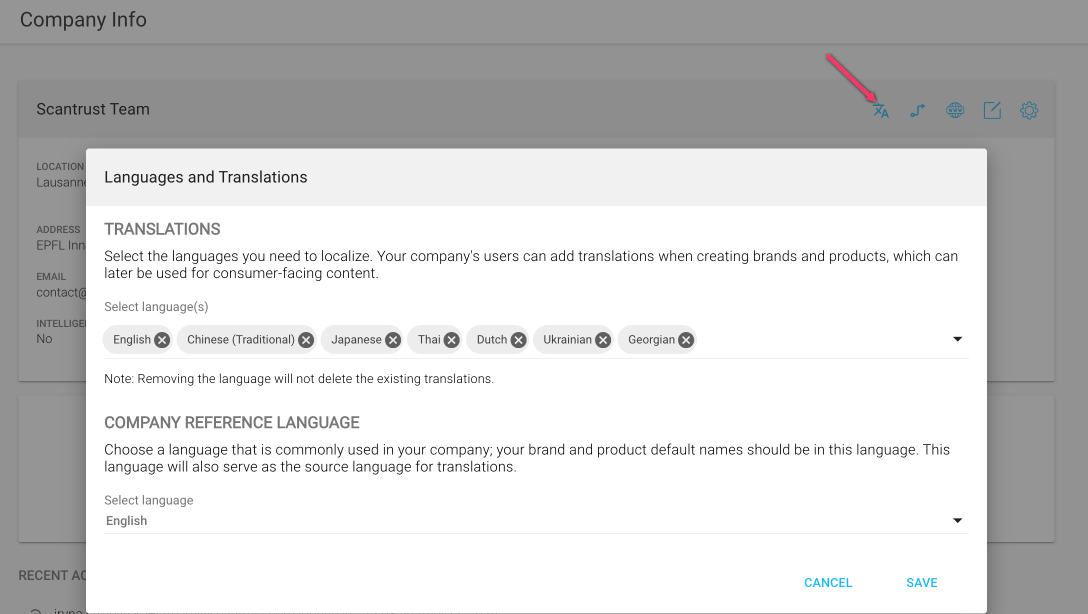
- Set up company languages
Before translating, a brand admin needs to configure which languages the company works with and pick a default reference language for machine translation.
Navigate to Company Info → Languages and Translations to:
-
Select the languages you want to localize into (Chinese, Japanese, Thai, Dutch, etc.)
-
Set the company reference language — this is the source language used for machine translation and the default for brand/product names
- Translate a brand or product
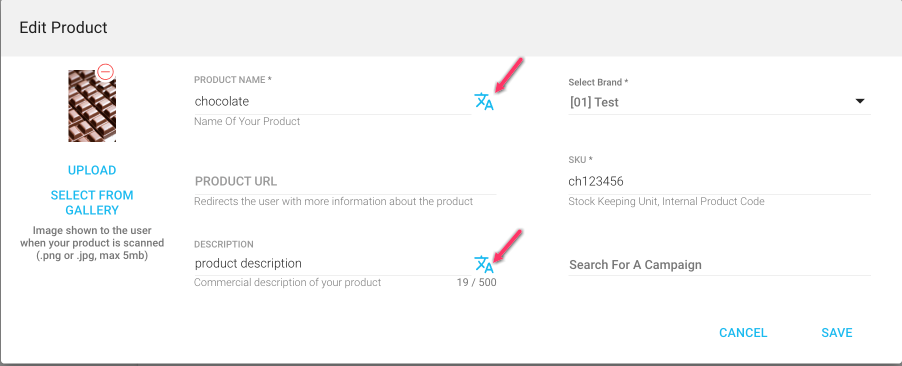
There are two entry points for translation:
a) From the edit screen
A new translation icon appears next to each translatable field. Click it to open the translation modal for that specific field.
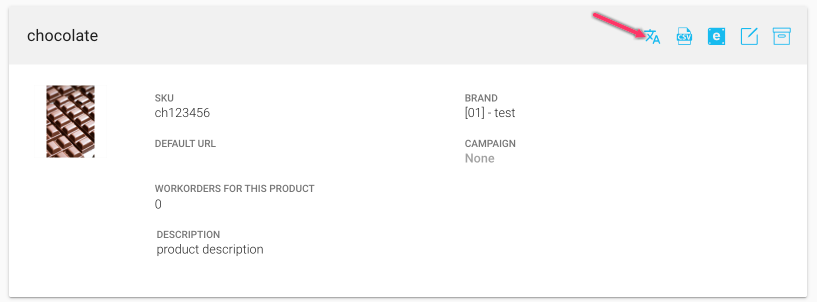
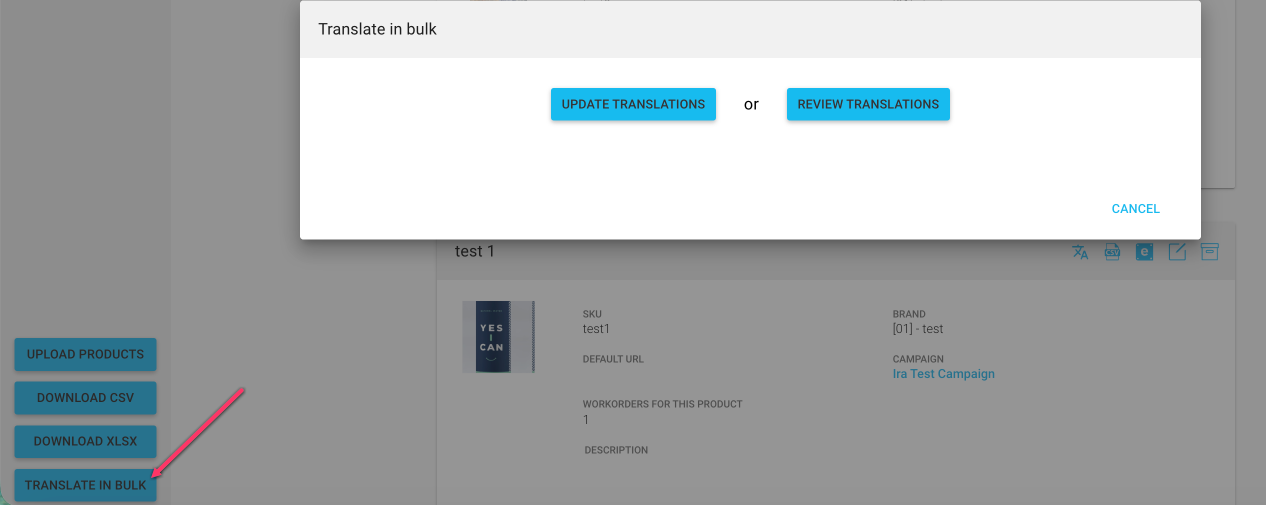
b) From the brand/product card
A translation button is now available directly on the brand/product card header, which opens the full translation modal covering all translatable fields at once.
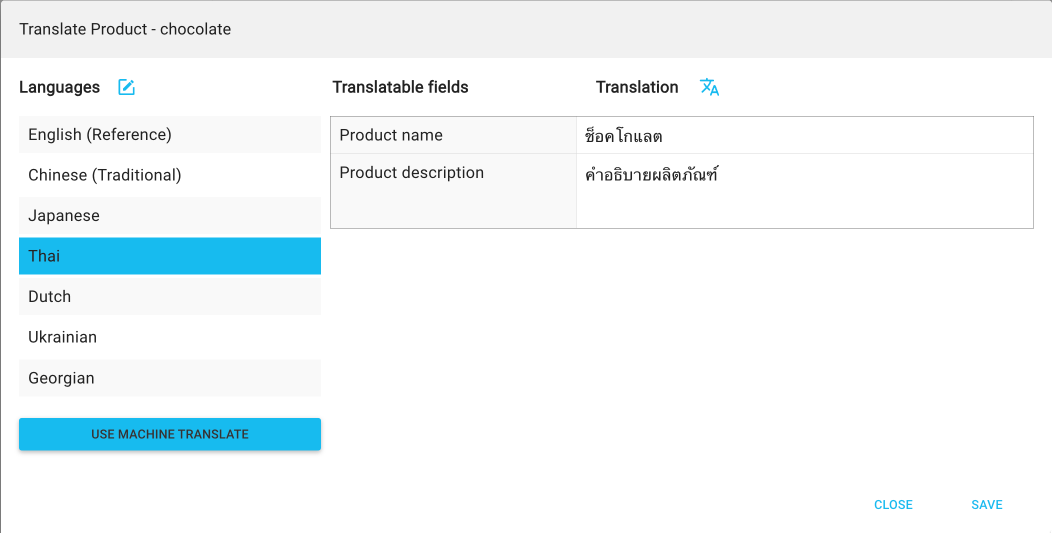
- The translation modal
The translation modal is where the magic happens. From here you can:
-
View and edit translations for every language configured in company settings
-
Update the list of languages without leaving the modal (quick link back to company settings)
-
Use machine translation — either for a single language or for all languages at once with one click
- Translations in the Landing Page Editor
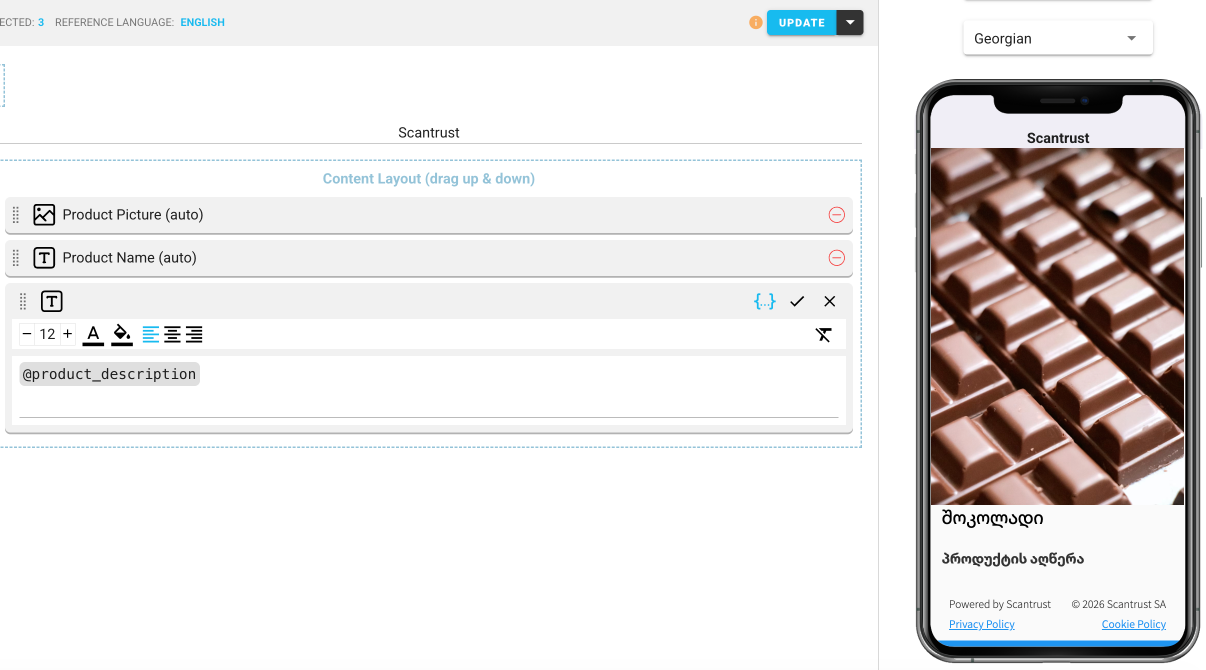
This is where translations really pay off.
-
New landing pages will automatically use the company's configured languages by default — no extra setup needed.
-
The following widgets and placeholders will now pull the correct translation based on the viewer's language:
- Product name widget
- @product name
- @product description
- @brand name
That means one landing page, many languages — and the content updates itself based on what's been translated
Scantrust Backend v5.2.0
Features:
-
Added code search across all companies within an organization for organization admins.
-
Added translations module for product and brand name and description, with controlled access via permissions.
-
Added support for GS1 SGTIN codes in standard work orders.
Android Scantrust Enterprise v2.3.14
Features:
- Fixed an issue related to retrieving the IP address.
Photo Auth v3.11.1
Containing changes
-
Fixed an issue where location and phone models were not detected during scanning.
-
Restricted landscape mode and added a “Rotate back” pop-up.
-
Fixed an issue where the “Take photo” button was sometimes displayed in the wrong position.
Video Auth v3.3.2
Containing changes
- Fixed camera detection on iPhone for Traditional Chinese.